


Page 41 - Code Craft Computer-7
P. 41
8.   Type the name of your project in the Project name:      box.

            9.   Click on OK    button.


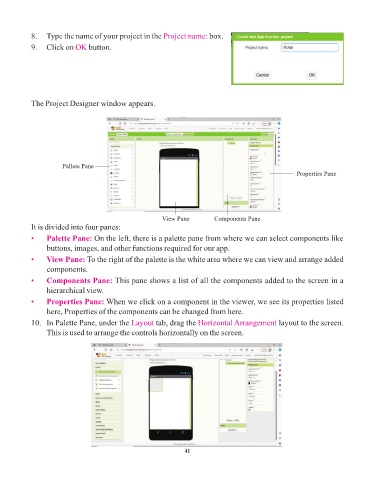
            The Project Designer window appears.


                       Pallete Pane
                                                                                                        Properties Pane


                                                         View Pane         Components Pane
            It is divided into four panes:

            •    Palette Pane: On the left, there is a palette pane from where we can select components like
                 buttons, images, and other functions required for our app.
            •    View Pane: To the right of the palette is the white area where we can view and arrange added
                 components.

            •    Components Pane: This pane shows a list of all the components added to the screen in a
                 hierarchical view.
            •    Properties Pane: When we click on a component in the viewer, we see its properties listed
                 here, Properties of the components can be changed from here.

            10.   In Palette Pane, under the Layout    tab, drag the Horizontal Arrangement      layout to the screen.
                 This is used to arrange the controls horizontally on the screen.


                                                                 41

