


Page 32 - 00inner.cdr
P. 32
SELECTING AND DESELECTING AN ICON

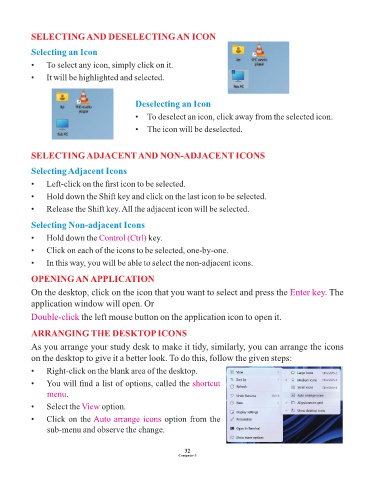
            Selecting an Icon

            •    To select any icon, simply click on it.

            •    It will be highlighted and selected.


                                                Deselecting an Icon
                                                •  To deselect an icon, click away from the selected icon.

                                                •  The icon will be deselected.


            SELECTING ADJACENT AND NON-ADJACENT ICONS

            Selecting Adjacent Icons

            •    Left-click on the first icon to be selected.

            •    Hold down the Shift key and click on the last icon to be selected.
            •    Release the Shift key. All the adjacent icon will be selected.


            Selecting Non-adjacent Icons

            •    Hold down the Control (Ctrl)       key.
            •    Click on each of the icons to be selected, one-by-one.

            •    In this way, you will be able to select the non-adjacent icons.

            OPENING AN APPLICATION

            On the desktop, click on the icon that you want to select and press the Enter key                    . The

            application window will open. Or

            Double-click the left mouse button on the application icon to open it.

            ARRANGING THE DESKTOP ICONS

            As you arrange your study desk to make it tidy, similarly, you can arrange the icons
            on the desktop to give it a better look. To do this, follow the given steps:

            •    Right-click on the blank area of the desktop.

            •    You will find a list of options, called the shortcut
                 menu.

            •    Select the View    option.

            •    Click on the Auto arrange icons          option from the
                 sub-menu and observe the change.


                                                                 32
                                                               Computer-3

