


Page 34 - 00inner.cdr
P. 34
•    The selected colour will be set as the desktop background.


            CHANGING THE SCREEN SAVER
            The  Screen  Saver       is  an  image  that  pops  up  on  the  computer  screen  whenever  a

            computer is left idle for a certain period of time. By pressing any key or moving the
            mouse, you can again get back to the normal screen. Follow the given steps to change

            the screen saver:

            •    Right-click on the blank area of the desktop.
            •    Click  on  the  Personalize        option  from  the
                 shortcut menu.

            •    The Personalization     window will appear.

            •    Select the Lock screen      option from the right
                 pane.

            •    Click on the Screen saver       option.

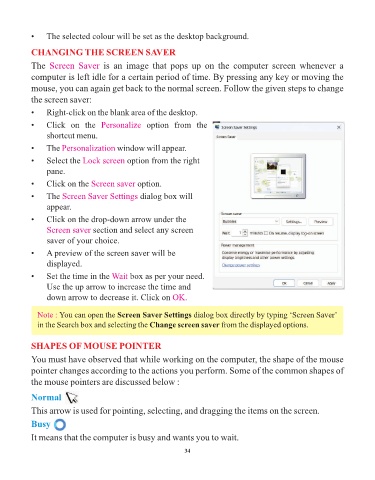
            •    The Screen Saver Settings       dialog box will
                 appear.

            •    Click on the drop-down arrow under the
                 Screen saver section and select any screen
                 saver of your choice.

            •    A preview of the screen saver will be
                 displayed.

            •    Set the time in the Wait     box as per your need.
                 Use the up arrow to increase the time and
                 down arrow to decrease it. Click on OK          .


              Note : You can open the Screen Saver Settings dialog box directly by typing ‘Screen Saver’
              in the Search box and selecting the Change screen saver from the displayed options.


            SHAPES OF MOUSE POINTER

            You must have observed that while working on the computer, the shape of the mouse
            pointer changes according to the actions you perform. Some of the common shapes of

            the mouse pointers are discussed below :

            Normal

            This arrow is used for pointing, selecting, and dragging the items on the screen.

            Busy

            It means that the computer is busy and wants you to wait.

                                                                 34

