


Page 50 - 00inner.cdr
P. 50
2.  A new blank presentation appears in PowerPoint. By default, it contains only one slide with
                 dotted rectangular boxes, called Placeholders       . These placeholders hold text, images, and
                 other objects on a slide.

            Adding Text in a Placeholder

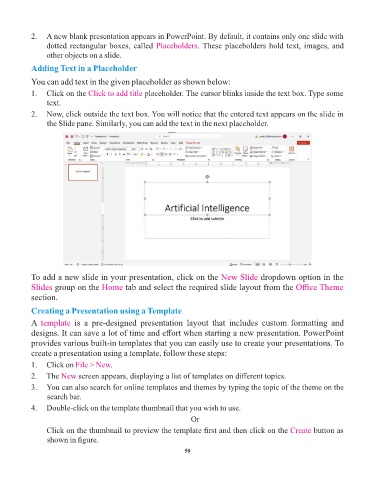
            You can add text in the given placeholder as shown below:

            1.  Click on the Click to add title    placeholder. The cursor blinks inside the text box. Type some
                 text.
            2.  Now, click outside the text box. You will notice that the entered text appears on the slide in
                 the Slide pane. Similarly, you can add the text in the next placeholder.


            To add a new slide in your presentation, click on the New Slide                dropdown option in the
            Slides group on the     Home tab and select the required slide layout from the             Office Theme
            section.

            Creating a Presentation using a Template

            A  template    is  a  pre-designed  presentation  layout  that  includes  custom  formatting  and
            designs. It can save a lot of time and effort when starting a new presentation. PowerPoint
            provides various built-in templates that you can easily use to create your presentations. To

            create a presentation using a template, follow these steps:
            1.  Click on File > New    .
            2.  The New     screen appears, displaying a list of templates on different topics.

            3.  You can also search for online templates and themes by typing the topic of the theme on the
                 search bar.
            4.  Double-click on the template thumbnail that you wish to use.

                                                                   Or
                 Click on the thumbnail to preview the template first and then click on the Create            button as
                 shown in figure.

                                                                 50

