


Page 21 - 00inner.cdr
P. 21
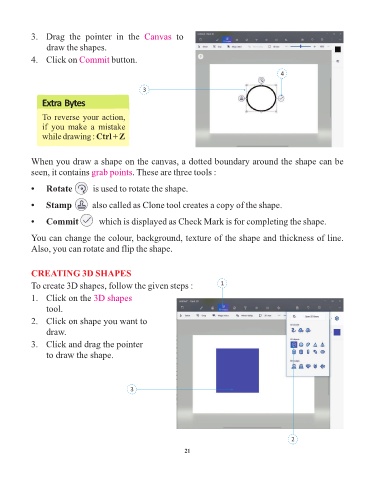
3.  Drag  the  pointer  in  the  Canvas           to

                 draw the shapes.
            4.  Click on Commit         button.

                                                                                                  4


                                                  3
                Extra Bytes


                To reverse your action,
                if  you  make  a  mistake
                while drawing : Ctrl + Z


            When you draw a shape on the canvas, a dotted boundary around the shape can be
            seen, it contains grab points      . These are three tools :


            •    Rotate         is used to rotate the shape.


            •    Stamp         also called as Clone tool creates a copy of the shape.

            •    Commit         which is displayed as Check Mark is for completing the shape.

            You can change the colour, background, texture of the shape and thickness of line.

            Also, you can rotate and flip the shape.


            CREATING 3D SHAPES

            To create 3D shapes, follow the given steps :                    1

            1.   Click on the 3D shapes
                 tool.
            2.   Click on shape you want to

                 draw.

            3.   Click and drag the pointer
                 to draw the shape.


                                              3


                                                                                                      2

                                                                 21

