


Page 51 - 00inner.cdr
P. 51
Scripts Area

            Scripts area is the place where you write the Script for the Sprite. Drag the instructions
            from the blocks palette and drop it in the Scripts area to write a program. The blocks fit into
            each other as jig-saw puzzle blocks.
            Green Flag

            It is a small green icon placed at the top-right corner of the stage screen. On clicking this
            button, the script will run step-by-step.

            Stop button
            It is also placed at the top-right corner of the stage screen. It is red in colour and is used to
            stop the project at any time during the execution.

            HOW TO WRITE THE SCRATCH PROGRAM?

            To write a Scratch program (the Script of detailed instructions for the Sprite)

            1.   We have to drag the instructions blocks such as Motion, Sound from the Blocks Palette
                 area and drop them into the Scripts Area.

            2.   These blocks are pasted one after the other, to create the Script. (The blocks should fit
                 into each other as jig-saw puzzle blocks.)

            3.   When  you  double-click  on  a  Script,  Scratch  runs  the  program.  It  carries  out  the
                 instructions in the blocks, one by one, from the top to the bottom of the Script.

            WORKING WITH SPRITE

            Moving a Sprite

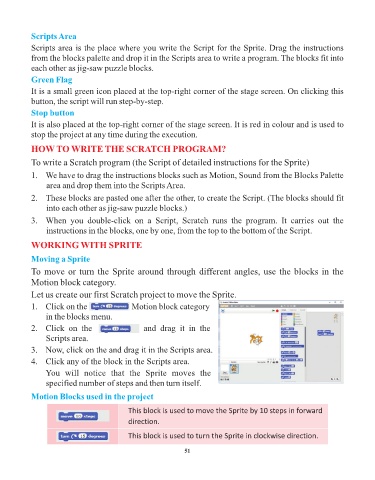
            To move or turn the Sprite around through different angles, use the blocks in the
            Motion block category.

            Let us create our first Scratch project to move the Sprite.
            1.   Click on the aaaaaaaaaa      Motion block category

                 in the blocks menu.
            2.   Click  on  the  aaaaaaaaaa        and  drag  it  in  the
                 Scripts area.

            3.   Now, click on the and drag it in the Scripts area.
            4.   Click any of the block in the Scripts area.

                 You  will  notice  that  the  Sprite  moves  the
                 specified number of steps and then turn itself.

            Motion Blocks used in the project

                                             This block is used to move the Sprite by 10 steps in forward
                                             direction.

                                             This block is used to turn the Sprite in clockwise direction.


                                                                 51


                  Tech Et ique e


                ¨  Always press the keys of the keyboard gently.


                          Flashback Time


                       Try It Out                                                                  #Problem Solving

