


Page 52 - 00inner.cdr
P. 52
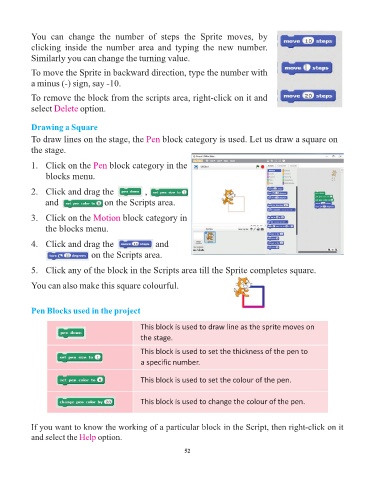
You  can  change  the  number  of  steps  the  Sprite  moves,  by

            clicking  inside  the  number  area  and  typing  the  new  number.
            Similarly you can change the turning value.

            To move the Sprite in backward direction, type the number with
            a minus (-) sign, say -10.

            To remove the block from the scripts area, right-click on it and

            select Delete    option.


            Drawing a Square
            To draw lines on the stage, the Pen          block category is used. Let us draw a square on

            the stage.

            1.   Click on the Pen      block category in the
                 blocks menu.


            2.   Click and drag the aaaaaaa        , aaaaaaaaaa
                 and aaaaaaaaaa      on the Scripts area.

            3.   Click on the Motion       block category in
                 the blocks menu.


            4.   Click and drag the aaaaaaaaa          and
                 aaaaaaaaaa  on the Scripts area.


            5.   Click any of the block in the Scripts area till the Sprite completes square.

            You can also make this square colourful.


            Pen Blocks used in the project


                                                  This block is used to draw line as the sprite moves on
                                                  the stage.

                                                  This block is used to set the thickness of the pen to
                                                  a specific number.


                                                  This block is used to set the colour of the pen.


                                                  This block is used to change the colour of the pen.


            If you want to know the working of a particular block in the Script, then right-click on it

            and select the Help    option.

                                                                 52


                  Tech Et ique e


                ¨  Always press the keys of the keyboard gently.


                          Flashback Time


                       Try It Out                                                                  #Problem Solving

