


Page 30 - 00inner.cdr
P. 30
ADDING OR DELETING TEXT

            The Text tool is used to write 2D and 3D text. Writing 2D text is straight forward- just click
            and type. To create 3D text, follow these steps:
            1.  Click on the Text    tool.

            2.  Select 3D Text    option in the 3D Text pane   .
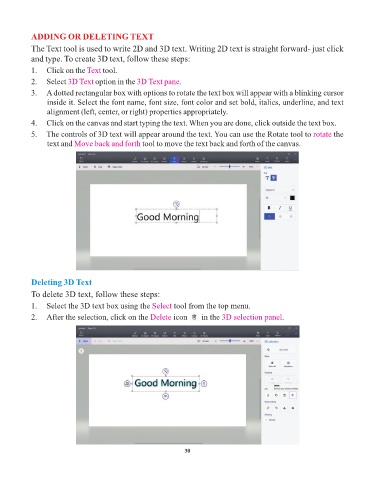
            3.  A dotted rectangular box with options to rotate the text box will appear with a blinking cursor
                 inside it. Select the font name, font size, font color and set bold, italics, underline, and text
                 alignment (left, center, or right) properties appropriately.

            4.  Click on the canvas and start typing the text. When you are done, click outside the text box.
            5.  The controls of 3D text will appear around the text. You can use the Rotate tool to rotate           the
                 text and Move back and forth     tool to move the text back and forth of the canvas.


            Deleting 3D Text

            To delete 3D text, follow these steps:
            1.  Select the 3D text box using the Select      tool from the top menu.

            2.  After the selection, click on the Delete     icon       in the 3D selection panel  .


                                                                 30

