


Page 26 - 00inner.cdr
P. 26
2D Shapes tool
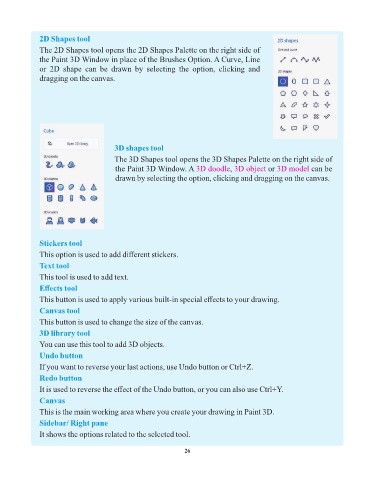
               The 2D Shapes tool opens the 2D Shapes Palette on the right side of
               the Paint 3D Window in place of the Brushes Option. A Curve, Line
               or  2D  shape  can  be  drawn  by  selecting  the  option,  clicking  and
               dragging on the canvas.


                                         3D shapes tool

                                         The 3D Shapes tool opens the 3D Shapes Palette on the right side of
                                         the Paint 3D Window. A 3D doodle        , 3D object  or 3D model    can be
                                         drawn by selecting the option, clicking and dragging on the canvas.


               Stickers tool
               This option is used to add different stickers.

               Text tool
               This tool is used to add text.

               Effects tool
               This button is used to apply various built-in special effects to your drawing.
               Canvas tool

               This button is used to change the size of the canvas.
               3D library tool

               You can use this tool to add 3D objects.
               Undo button
               If you want to reverse your last actions, use Undo button or Ctrl+Z.

               Redo button
               It is used to reverse the effect of the Undo button, or you can also use Ctrl+Y.

               Canvas
               This is the main working area where you create your drawing in Paint 3D.

               Sidebar/ Right pane
               It shows the options related to the selected tool.


                                                                 26

