


Page 25 - 00inner.cdr
P. 25
COMPONENTS OF PAINT 3D WINDOW

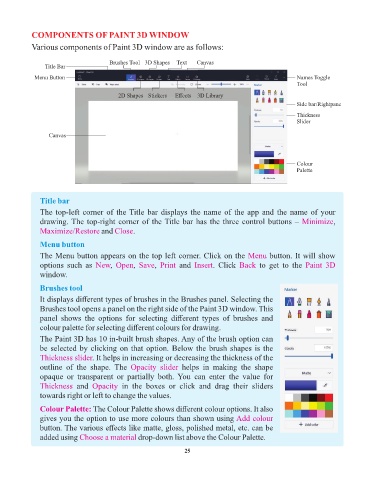
            Various components of Paint 3D window are as follows:

                                       Brushes Tool 3D Shapes  Text  Canvas
                 Title Bar
             Menu Button                                                                                Names Toggle
                                                                                                        Tool
                                          2D Shapes Stickers  Effects  3D Library
                                                                                                        Side bar/Rightpane
                                                                                                        Thickness
                                                                                                        Slider

                  Canvas


                                                                                                        Colour
                                                                                                        Palette


               Title bar
               The top-left corner of the Title bar displays the name of the app and the name of your
               drawing. The top-right corner of the Title bar has the three control buttons – Minimize              ,
               Maximize/Restore and      Close.

               Menu button
               The Menu button appears on the top left corner. Click on the Menu              button. It will show
               options  such  as  New Open Save Print          and  Insert .  Click  Back  to  get  to  the  Paint  3D
                                               ,
                                       ,
                                                      ,
               window.
               Brushes tool
               It displays different types of brushes in the Brushes panel. Selecting the
               Brushes tool opens a panel on the right side of the Paint 3D window. This
               panel  shows  the  options  for  selecting  different  types  of  brushes  and
               colour palette for selecting different colours for drawing.
               The Paint 3D has 10 in-built brush shapes. Any of the brush option can
               be selected by clicking on that option. Below the brush shapes is the
               Thickness slider. It helps in increasing or decreasing the thickness of the
               outline  of  the  shape.  The  Opacity  slider   helps  in  making  the  shape
               opaque  or  transparent  or  partially  both.  You  can  enter  the  value  for

               Thickness  and    Opacity  in  the  boxes  or  click  and  drag  their  sliders
               towards right or left to change the values.

               Colour Palette: The Colour Palette shows different colour options. It also
               gives you the option to use more colours than shown using Add colour
               button. The various effects like matte, gloss, polished metal, etc. can be
               added using Choose a material     drop-down list above the Colour Palette.

                                                                 25

