


Page 39 - 00inner.cdr
P. 39
To apply any font style effects, follow the given steps:

            1.  Select the text.
            2.  Click on either aaaa   , aaaa  or aaaa  in the Font  group on the Home  tab.

            Word also provides some more formatting options, which can be selected from the Font
            dialog box. To open the Font       dialog box, click on the Font      dialog box launcher in the Font
            group on the Home      tab.


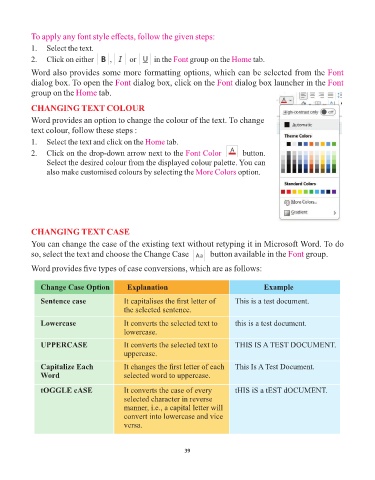
            CHANGING TEXT COLOUR
            Word provides an option to change the colour of the text. To change
            text colour, follow these steps :

            1.  Select the text and click on the Home      tab.
            2.  Click on the drop-down arrow next to the Font Color            pic-7  button.
                 Select the desired colour from the displayed colour palette. You can
                 also make customised colours by selecting the More Colors         option.


            CHANGING TEXT CASE

            You can change the case of the existing text without retyping it in Microsoft Word. To do
            so, select the text and choose the Change Case pic-9          button available in the Font     group.

            Word provides five types of case conversions, which are as follows:


               Change Case Option            Explanation                                    Example

               Sentence case                It capitalises the first letter of     This is a test document.
                                            the selected sentence.

               Lowercase                    It converts the selected text to      this is a test document.
                                            lowercase.

               UPPERCASE                    It converts the selected text to      THIS IS A TEST DOCUMENT.
                                            uppercase.
               Capitalize Each              It changes the first letter of each    This Is A Test Document.
               Word                         selected word to uppercase.


               tOGGLE cASE                  It converts the case of every         tHIS iS a tEST dOCUMENT.
                                            selected character in reverse
                                            manner, i.e., a capital letter will
                                            convert into lowercase and vice
                                            versa.


                                                                 39

