


Page 70 - 00inner.cdr
P. 70
Block


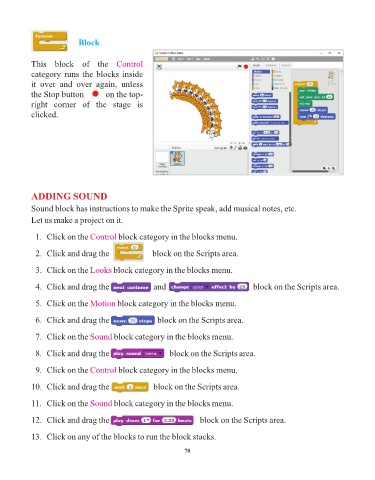
            This  block  of  the  Control
            category runs the blocks inside

            it  over  and  over  again,  unless
            the Stop button         on the top-
            right  corner  of  the  stage  is
            clicked.


            ADDING SOUND
            Sound block has instructions to make the Sprite speak, add musical notes, etc.

            Let us make a project on it.

            01.  Click on the Control     block category in the blocks menu.


            02.  Click and drag the                    block on the Scripts area.


            03.  Click on the Looks     block category in the blocks menu.

            04.  Click and drag the    aaaaaaaaaa  and                        aaaaaaaaaaa block on the Scripts area.


            05.  Click on the Motion      block category in the blocks menu.

            06.  Click and drag the    aaaaaaaaaaa  block on the Scripts area.


            07.  Click on the Sound     block category in the blocks menu.


            08.  Click and drag the    aaaaaaaaaa    aa  block on the Scripts area.

            09.  Click on the Control     block category in the blocks menu.


            10.  Click and drag the aaaaaaaaaa        block on the Scripts area.

            11.  Click on the Sound     block category in the blocks menu.


            12.  Click and drag the aaaaaaa                  aaaaa     block on the Scripts area.


            13.  Click on any of the blocks to run the block stacks.

                                                                 70

