


Page 25 - Code Craft Computer-7
P. 25
SWITCHING TO ANIMATION WORKSPACE

            In  Krita,  to  access  the  animation  features,  the  easiest  way  is  to  change  your  workspace  to
            Animation. This will make the animation dockers (panels) appear on the workspace. To add the
            animation dockers, click on the Choose Workspace button. This will display the workspace panel.
            Here,  select  the  Animation  option.  You  will  see  the  animation  dockers  and  stage  on  your
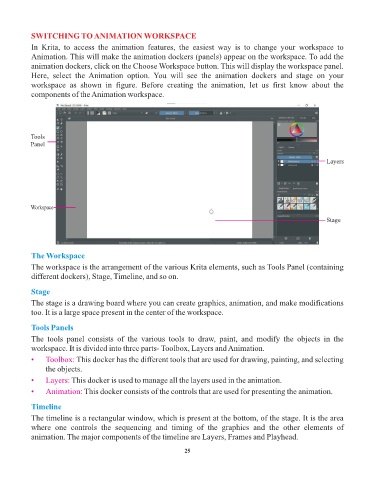
            workspace  as  shown  in  figure.  Before  creating  the  animation,  let  us  first  know  about  the
            components of the Animation workspace.


            Tools
            Panel

                                                                                                                  Layers


            Workspace

                                                                                                                  Stage


            The Workspace

            The workspace is the arrangement of the various Krita elements, such as Tools Panel (containing
            different dockers), Stage, Timeline, and so on.

            Stage

            The stage is a drawing board where you can create graphics, animation, and make modifications
            too. It is a large space present in the center of the workspace.

            Tools Panels
            The  tools  panel  consists  of  the  various  tools  to  draw,  paint,  and  modify  the  objects  in  the
            workspace. It is divided into three parts- Toolbox, Layers and Animation.

            •    Toolbox: This docker has the different tools that are used for drawing, painting, and selecting
                 the objects.
            •    Layers: This docker is used to manage all the layers used in the animation.

            •    Animation: This docker consists of the controls that are used for presenting the animation.

            Timeline

            The timeline is a rectangular window, which is present at the bottom, of the stage. It is the area
            where  one  controls  the  sequencing  and  timing  of  the  graphics  and  the  other  elements  of
            animation. The major components of the timeline are Layers, Frames and Playhead.

                                                                 25

