


Page 15 - Code Craft Computer-7
P. 15
CELL RANGE

            A cell range in Excel can be defined as a group of selected cells. A cell range can be used to
            perform calculation on multiple cells. You can create a range either by selecting the continuous
            cells in a worksheet or using the colon (:) symbol. Let us learn how to select a range of cells.
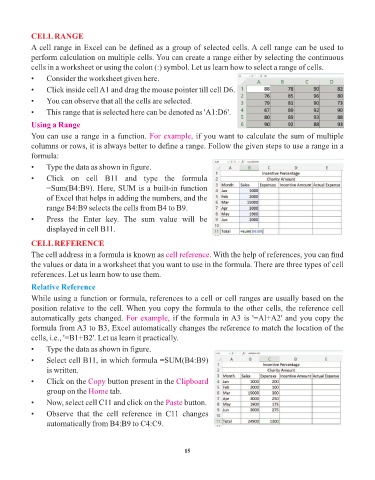
            •    Consider the worksheet given here.

            •    Click inside cell A1 and drag the mouse pointer till cell D6.
            •    You can observe that all the cells are selected.

            •    This range that is selected here can be denoted as 'A1:D6'.
            Using a Range

            You can use a range in a function. For example,          if you want to calculate the sum of multiple
            columns or rows, it is always better to define a range. Follow the given steps to use a range in a
            formula:
            •    Type the data as shown in figure.

            •    Click  on  cell  B11  and  type  the  formula
                 =Sum(B4:B9). Here, SUM is a built-in function
                 of Excel that helps in adding the numbers, and the
                 range B4:B9 selects the cells from B4 to B9.

            •    Press  the  Enter  key.  The  sum  value  will  be
                 displayed in cell B11.

            CELL REFERENCE
            The cell address in a formula is known as cell reference     . With the help of references, you can find
            the values or data in a worksheet that you want to use in the formula. There are three types of cell
            references. Let us learn how to use them.

            Relative Reference

            While using a function or formula, references to a cell or cell ranges are usually based on the
            position relative to the cell. When you copy the formula to the other cells, the reference cell
            automatically gets changed. For example,         if the formula in A3 is '=Al+A2' and you copy the
            formula from A3 to B3, Excel automatically changes the reference to match the location of the
            cells, i.e., '=B1+B2'. Let us learn it practically.

            •    Type the data as shown in figure.
            •    Select cell B11, in which formula =SUM(B4:B9)
                 is written.

            •    Click on the Copy    button present in the Clipboard
                 group on the Home     tab.
            •    Now, select cell C11 and click on the Paste     button.
            •    Observe  that  the  cell  reference  in  C11  changes

                 automatically from B4:B9 to C4:C9.


                                                                 15

