


Page 48 - Code Craft Computer-7
P. 48
The Advanced

                    5                Features of


                                     Excel 2021


                           Core Concepts

                          On completion of this chapter you will be able to know:
                          ¨  Freezing Panes                  ¨  Sorting the Data
                          ¨   Filtering the Data             ¨   Data Validation
                          ¨   Adding the Subtotal            ¨   Pivot Tables
                          ¨   Goal Seek                      ¨   Conditional Formatting
                          ¨   Charts in Excel                ¨   Creating a Chart


                  Warm Up                                                                           #Art Integration


                 Write down the rules to use a Function in the space given below.
                 _____________________________________________________________________________
                 _____________________________________________________________________________

                 _____________________________________________________________________________
                 _____________________________________________________________________________
                 _____________________________________________________________________________


            FREEZING PANES
            Whenever you're working with a lot of data, it can be difficult to compare information in your
            workbook. Fortunately, Excel includes several tools that make it easier to view content from
            different parts of your workbook at the same time, including the ability to freeze panes         . You may

            want to see certain rows or columns all the time in your worksheet, especially header cells. By
            freezing rows or columns in place, you'll be able to scroll through your content while continuing
            to view the frozen cells.

            To freeze row
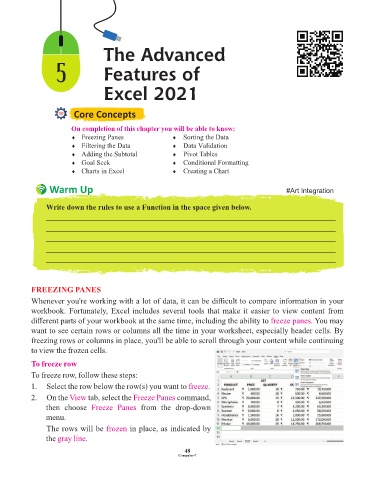
            To freeze row, follow these steps:

            1.  Select the row below the row(s) you want to freeze       .
            2.  On the View    tab, select the Freeze Panes   command,
                 then  choose  Freeze  Panes      from  the  drop-down
                 menu.

                 The rows will be frozen      in place, as indicated by
                 the gray line .

                                                                 48
                                                               Computer-7

