


Page 52 - Code Craft Computer-7
P. 52
PIVOTTABLE

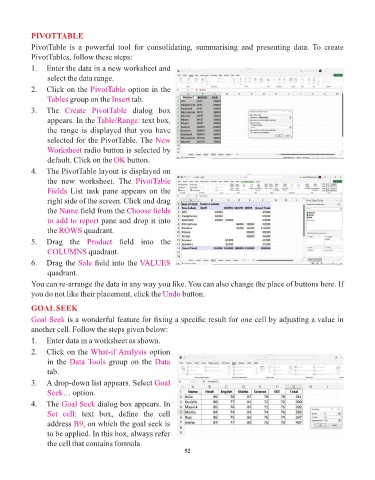
            PivotTable  is  a  powerful  tool  for  consolidating,  summarising  and  presenting  data.  To  create
            PivotTables, follow these steps:
            1.  Enter the data in a new worksheet and
                 select the data range.

            2.   Click on the PivotTable     option in the
                 Tables group on the    Insert tab.
            3.   The  Create  PivotTable       dialog  box
                 appears. In the Table/Range:     text box,

                 the range is  displayed that you  have
                 selected for the PivotTable. The New
                 Worksheet radio button is selected by
                 default. Click on the OK    button.
            4.   The PivotTable layout is displayed on
                 the  new  worksheet.  The  PivotTable
                 Fields  List  task  pane  appears  on  the

                 right side of the screen. Click and drag
                 the Name    field from the Choose fields
                 to add to report pane and drop it into
                 the ROWS     quadrant.

            5.   Drag  the  Product       field  into  the
                 COLUMNS quadrant.
            6.   Drag the Sale    field into the VALUES
                 quadrant.

            You can re-arrange the data in any way you like. You can also change the place of buttons here. If
            you do not like their placement, click the Undo     button.

            GOAL SEEK
            Goal Seek is a wonderful feature for fixing a specific result for one cell by adjusting a value in
            another cell. Follow the steps given below:

            1.   Enter data in a worksheet as shown.
            2.   Click on the What-if Analysis       option
                 in the Data Tools     group on the Data

                 tab.
            3.   A drop-down list appears. Select Goal
                 Seek… option.
            4.   The Goal Seek     dialog box appears. In

                 Set  cell:  text  box,  define  the  cell
                 address B9   , on which the goal seek is
                 to be applied. In this box, always refer
                 the cell that contains formula.
                                                                 52

