


Page 51 - Code Craft Computer-7
P. 51
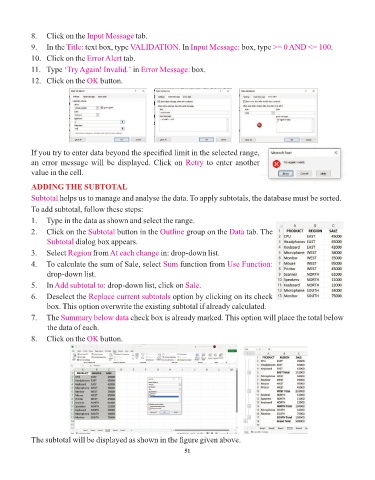
8.   Click on the Input Message     tab.

            9.   In the Title:  text box, type VALIDATION.      In Input Message:    box, type >= 0 AND <= 100     .
            10.   Click on the Error Alert  tab.
            11.   Type ‘Try Again! Invalid.’   in Error Message:   box.

            12.   Click on the OK   button.


            If you try to enter data beyond the specified limit in the selected range,
            an error message will be displayed. Click on Retry          to enter another
            value in the cell.


            ADDING THE SUBTOTAL
            Subtotal helps us to manage and analyse the data. To apply subtotals, the database must be sorted.
            To add subtotal, follow these steps:

            1.   Type in the data as shown and select the range.
            2.   Click on the Subtotal    button in the Outline  group on the Data    tab. The

                 Subtotal dialog box appears.
            3.   Select Region   from At each change     in: drop-down list.
            4.   To calculate the sum of Sale, select Sum      function from Use Function:
                 drop-down list.

            5.   In Add subtotal to:  drop-down list, click on Sale   .
            6.   Deselect the Replace current subtotals      option by clicking on its check
                 box. This option overwrite the existing subtotal if already calculated.

            7.   The Summary below data       check box is already marked. This option will place the total below
                 the data of each.
            8.   Click on the OK    button.


            The subtotal will be displayed as shown in the figure given above.

                                                                 51

