


Page 49 - Code Craft Computer-7
P. 49
To freeze column

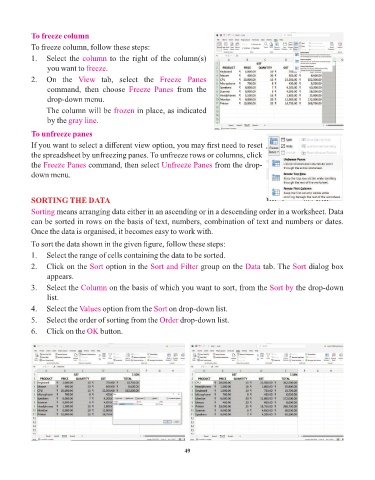
            To freeze column, follow these steps:
            1.  Select the column      to the right of the column(s)
                 you want to freeze   .
            2.  On  the  View       tab,  select  the  Freeze  Panes

                 command,  then  choose  Freeze  Panes        from  the
                 drop-down menu.
                 The column will be frozen      in place, as indicated
                 by the gray line .

            To unfreeze panes

            If you want to select a different view option, you may first need to reset
            the spreadsheet by unfreezing panes. To unfreeze rows or columns, click
            the Freeze Panes    command, then select Unfreeze Panes        from the drop-
            down menu.


            SORTING THE DATA
            Sorting means arranging data either in an ascending or in a descending order in a worksheet. Data
            can be sorted in rows on the basis of text, numbers, combination of text and numbers or dates.
            Once the data is organised, it becomes easy to work with.

            To sort the data shown in the given figure, follow these steps:
            1.   Select the range of cells containing the data to be sorted.

            2.   Click on the Sort    option in the Sort and Filter   group on the Data     tab. The Sort   dialog box
                 appears.
            3.   Select the Column     on the basis of which you want to sort, from the Sort by        the drop-down

                 list.
            4.   Select the Values  option from the Sort   on drop-down list.
            5.   Select the order of sorting from the Order    drop-down list.

            6.   Click on the OK    button.


                                                                 49

