


Page 22 - Code Craft Computer-8
P. 22
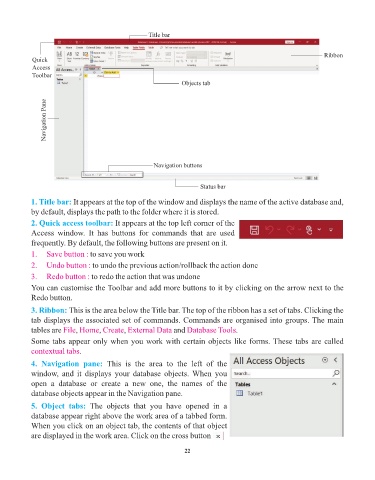
Title bar


                                                                                                                 Ribbon
            Quick
            Access
            Toolbar
                                                                Objects tab


                 Navigation Pane


                                                      Navigation buttons


                                                                      Status bar

            1. Title bar: It appears at the top of the window and displays the name of the active database and,
            by default, displays the path to the folder where it is stored.

            2. Quick access toolbar: It appears at the top left corner of the
            Access  window.  It  has  buttons  for  commands  that  are  used
            frequently. By default, the following buttons are present on it.
            1.   Save button : to save you work
            2.   Undo button : to undo the previous action/rollback the action done

            3.   Redo button : to redo the action that was undone
            You can customise the Toolbar and add more buttons to it by clicking on the arrow next to the

            Redo button.
            3. Ribbon: This is the area below the Title bar. The top of the ribbon has a set of tabs. Clicking the
            tab displays the associated set of commands. Commands are organised into groups. The main
            tables are File , Home , Create , External Data  and Database Tools    .

            Some tabs appear only when you work with certain objects like forms. These tabs are called
            contextual tabs.

            4.  Navigation  pane:  This  is  the  area  to  the  left  of  the
            window,  and  it  displays  your  database  objects. When  you
            open  a  database  or  create  a  new  one,  the  names  of  the
            database objects appear in the Navigation pane.

            5.  Object  tabs:  The  objects  that  you  have  opened  in  a
            database appear right above the work area of a tabbed form.
            When you click on an object tab, the contents of that object
                                                                              a
            are displayed in the work area. Click on the cross button

                                                                 22

